Uvod
What is the livechat plugin?
This Peertube plugin is meant to provide a chat system for Peertube videos.
By default, once you have installed the plugin on your Peertube instance, a chat room will automatically be created for each live stream.
On the following screenshot, you can see a classic Peertube video page, with a chat room on the right (click on the picture to view it full screen):
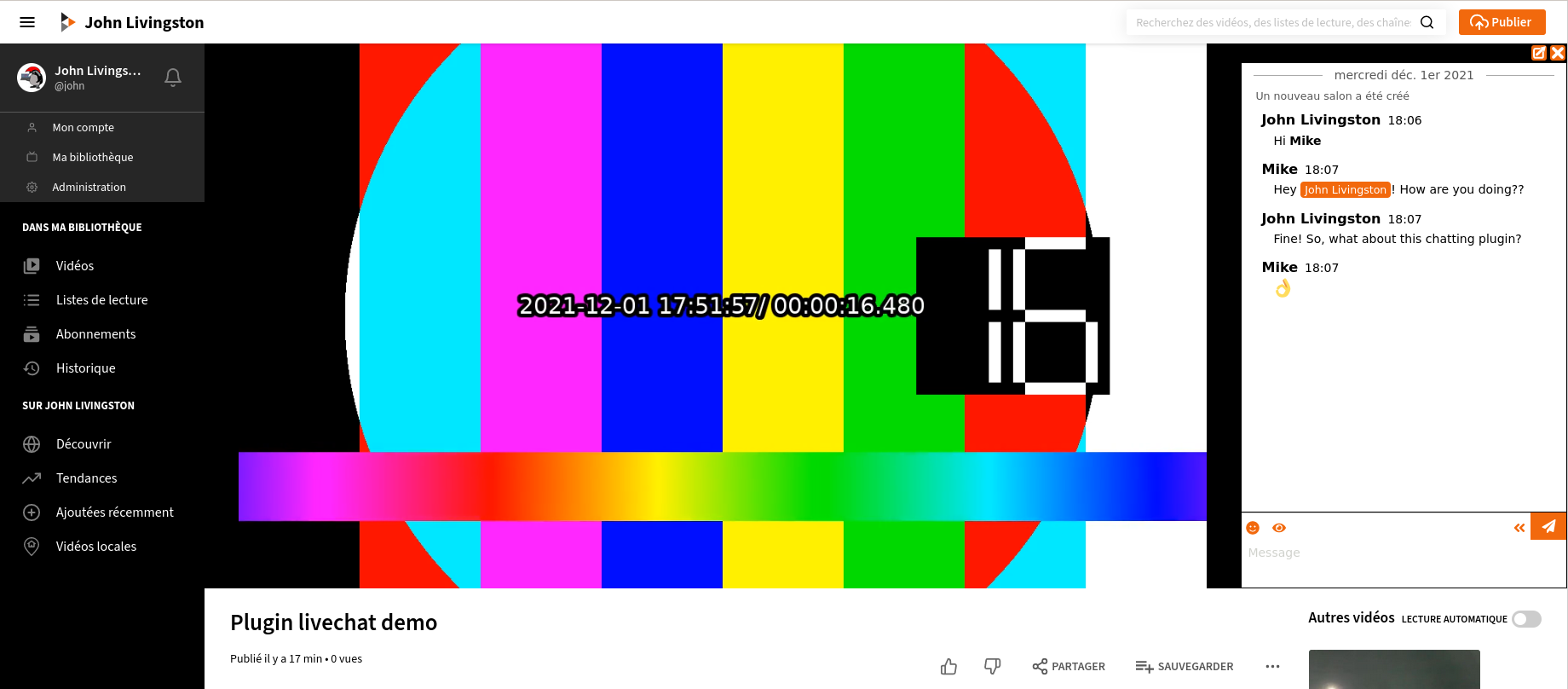
The chat room will be accessible for all viewers, even those who don’t have an account on your instance. Those “anonymous” users just have to choose a nickname before they can begin talking in the chat.
By default, the chat is displayed next to the video. But you can open it in another browser tab, using the button on top of it :
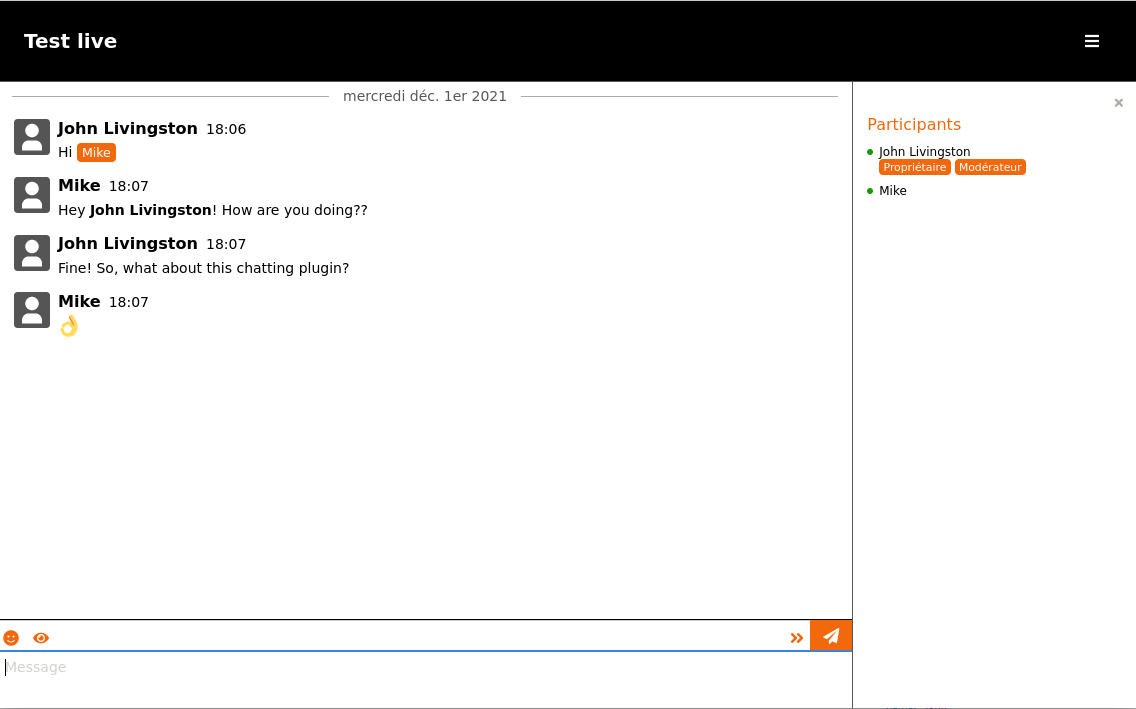
You can test the livechat plugin with this demo page.
Instaliranje
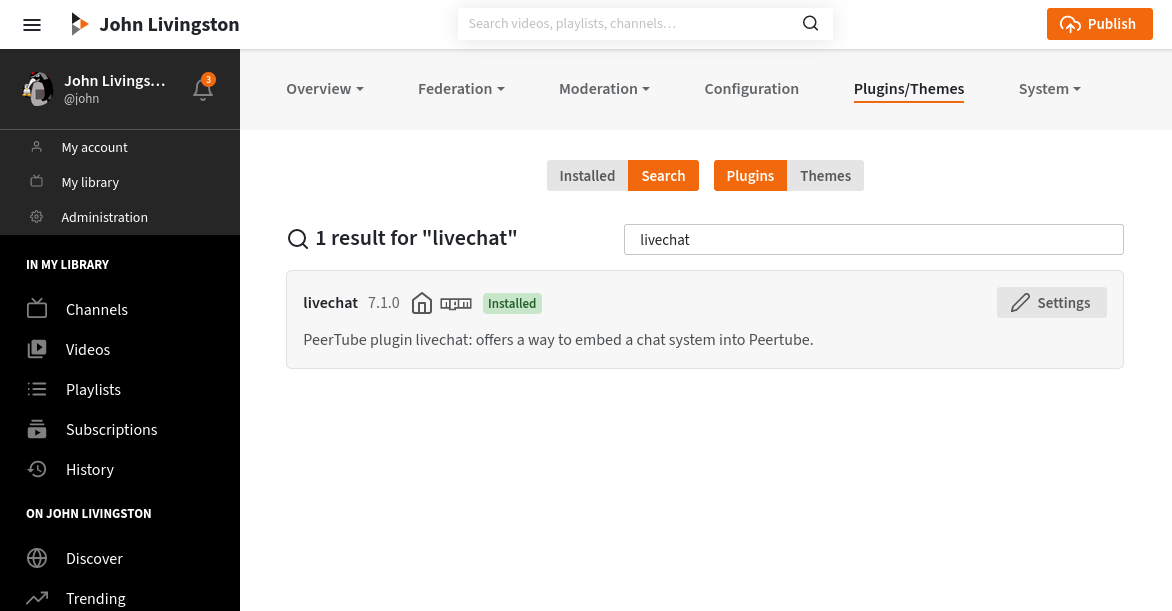
Kao administrator Peertubea, ovaj dodatak možeš postaviti na svoju instancu jednostavnim korištenjem trgovine Peertube dodataka koja je uključena u administratorskom sučelju. Potraži „livechat”, a zatim klikni „instaliraj”: to je to!
Livechat capabilities
The plugin has many advanced features. As it is using the XMPP standard “under the hood”, it is possible for Peertube administrators to allow advanced usages (connection using XMPP clients, chatbots, bridge to other chat protocols, …). More information in the relevant sections of this documentation.
Federacija
Peertube is part of the fediverse: you can create a network of Peertube instances, sharing content between them.
This plugin can handle federation: when viewing a livestream from a remote instance, you will join the chat room with your local account. You will be automatically connected with your current nickname and avatar.
Of course, for the federation to work, the plugin must be installed on both instances.
Moderiranje
Ponekad moraš zaštititi svoju zajednicu od loših ljudi. Kao administrator instance možeš zabraniti federaciju za livechat dodatak. Ako se udaljeni akteri ponašaju loše, streameri, moderatori i administratori mogu zabraniti ili isključiti korisnike.
Chat bot
Ovaj dodatak dolazi s ugrađenim chat botom. Za više informacija pregledaj njegovu dokumentaciju.
Također možeš uključiti bilo kojeg drugog XMPP chat bota koristeći eksterne XMPP komponente. Jednostavno konfiguriraj pristup eksternim komponentama u postavkama dodatka.
Chat persistence
Nakon pridruživanja sobi vidjet ćeš prethodne poruke. Čak i one koje su poslane prije tvog pridruživanja sobi.
Ovo se ponašanje može mijenjati od sobe do sobe, a administratori instance mogu odabrati standardno trajanje zadržavanja.
Integriraj chat u svoj prijenos uživo
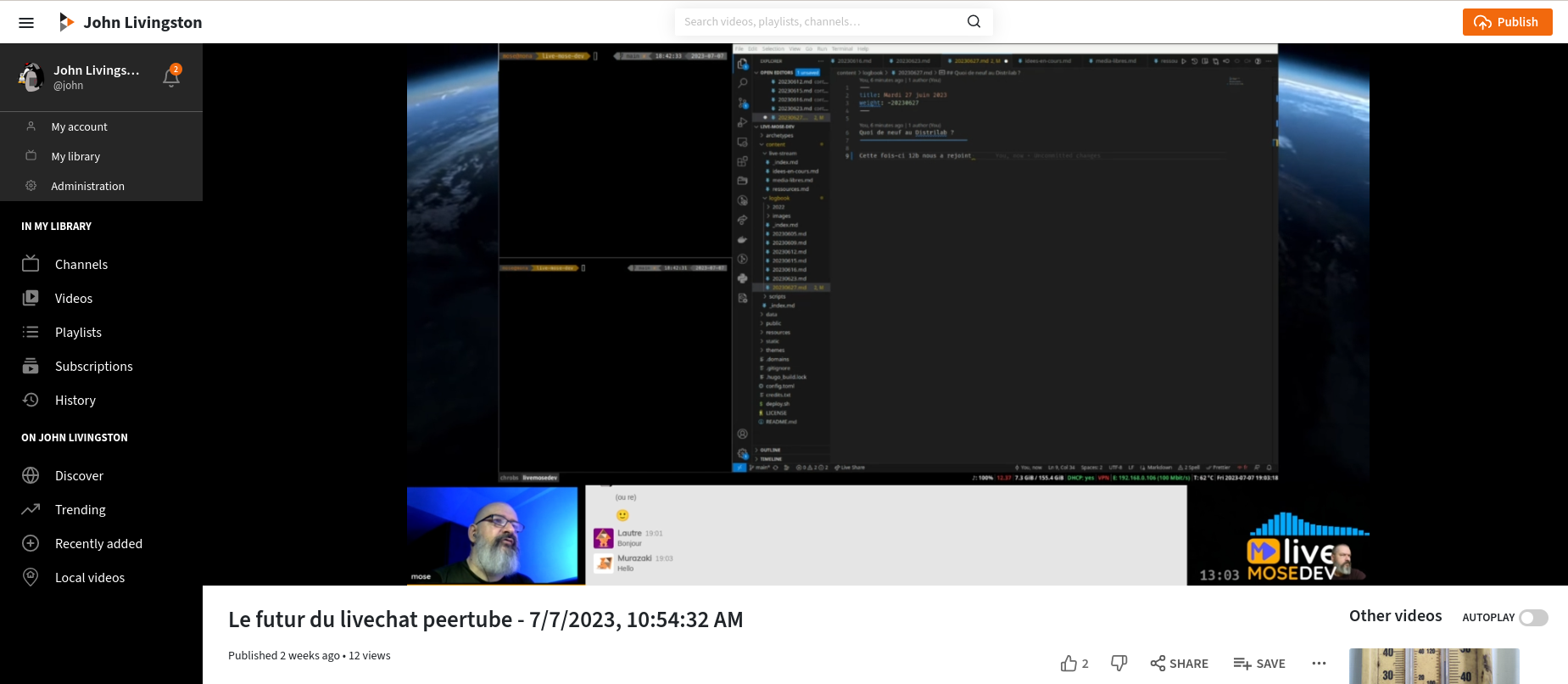
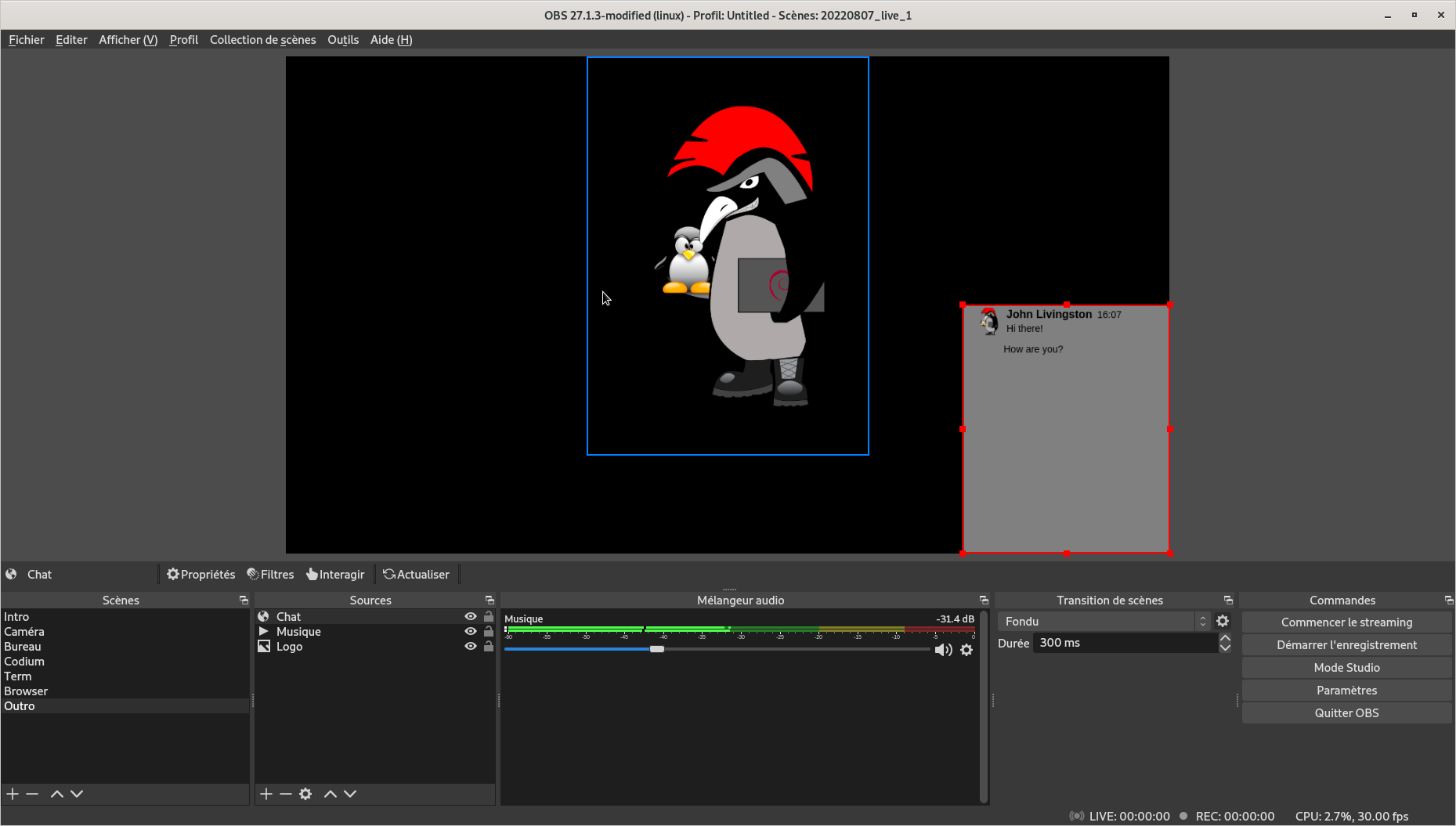
When using software as OBS for you live stream, you can embed the chat in the video stream. This is for example useful for replays.
In the following screenshot, you can see a live replay, where the chat content is embeded on bottom of the video:
In the following screenshot, you can see an OBS setup, where the chat is included as a source in the current scene (background color can be changed, and can be transparent):
Druga korištenja
By default, each streamer will be able to activate/deactivate the chat for their live streams.
But on the instance level, administrators can choose to activate the chat for all videos (live and/or VOD).
You can even activate the chat for specific VOD videos. This is how the demo page works: it is not a live stream, but I have activated the chat specifically for this video.